Workflow guide · JPG to PES

How to Convert JPG to PES

Converting a JPG to PES requires digitizing — translating pixel data into machine-readable stitch paths. StitchPilot.ai uses AI to assist this process, recommending stitch settings and generating a preview before export. This guide explains each step and what to look for at each checkpoint.

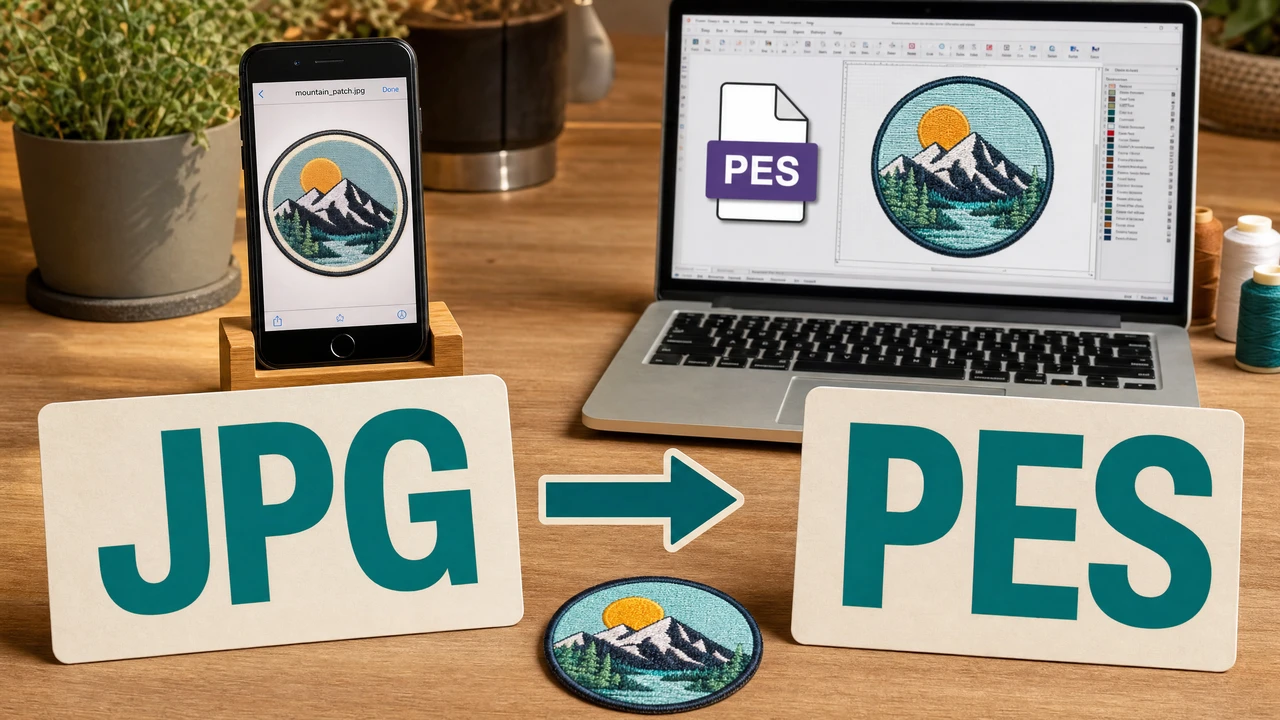
JPG to PES conversion workflow step by step in StitchPilot.ai
JPG to PES conversion workflow in StitchPilot.ai.

JPG to PES step by step

01

Prepare your JPG artwork

Start with the cleanest version of your JPG. High-contrast artwork with distinct color regions produces the most predictable stitch output. Avoid images with photographic gradients, busy backgrounds, or very fine details — these are difficult to render cleanly in stitch form.

02

Upload and let AI analyze

Upload your JPG to StitchPilot.ai. The AI analyzes shapes, color regions, and probable fill areas, then recommends size, stitch density, and color count settings. Review the recommendations and adjust if needed.

03

Review the stitch preview

Before downloading, review the stitch preview to verify fill coverage, color zone separation, and overall layout. Look for gaps in fill areas, overlapping paths, or color boundaries that don't match your original design intent.

04

Export PES and test stitch

Download the PES file, copy it to your Brother machine via USB, and run a test stitch on scrap fabric. Evaluate stitch density, color placement, and overall appearance before committing to production fabric.
Artwork that converts well

What makes a good source JPG?

The best JPG source files for embroidery conversion have: solid or near-solid color fills, high contrast between elements, clear outlines around design regions, and minimal background detail. Logos, icons, and flat-design artwork work well. Photorealistic images rarely convert to clean embroidery.

  • Solid color fills with clear boundaries
  • High contrast between design elements and background
  • Simple outlines and defined shapes
  • Minimal background detail or noise

What AI can and cannot do

AI assists — you review

AI digitizing analyzes color and shape information to recommend stitch regions. It is a significant time-saver compared to manual digitizing, but it cannot fully predict how a specific fabric and thread combination will behave. Always review the stitch preview and run a test stitch before production.

  • AI recommends stitch zones based on color and shape analysis
  • Preview the result before downloading
  • Run a test stitch before final production
  • Keep your original JPG for future re-exports or adjustments

JPG to PES — common questions

Can any JPG be converted to PES?

Most JPG files can be processed, but results vary significantly by artwork quality. Clean, high-contrast JPGs with solid color regions convert most reliably. Photorealistic or gradient-heavy images produce less predictable stitch results.

What resolution should my JPG be?

Higher resolution generally gives the AI more detail to work with. A JPG of at least 300 DPI or 1000px on the shortest side is a reasonable starting point. Very low-resolution images may produce rough or imprecise stitch edges.

How large will the embroidery design be?

Design size depends on the stitch density and output size you specify. Review the scale in the stitch preview before downloading and confirm it fits within your machine's hoop capacity.

Do I need Brother software to open the PES file?

No. The PES file exported from StitchPilot.ai can be copied directly to a USB drive and loaded on a Brother machine. You can also preview it using StitchPilot.ai's embroidery viewer.

Can I convert JPG to formats other than PES?

Yes. StitchPilot.ai supports export to DST, JEF, VP3, and other formats in addition to PES. Choose the format required by your machine during the export step.

Ready to get started?

Convert your JPG to PES now

Upload your JPG, review the AI-assisted stitch preview, and export a PES file ready for your Brother-compatible embroidery machine.

Start JPG to PES →