Upload your embroidery file
Start from a supported stitch or design file such as PES, DST, JEF, VP3, or EXP. The source file quality determines how accurate the preview will be.
 StitchPilot.ai
Preview export · PNG output
Turn a PES embroidery file into a shareable PNG preview image using StitchPilot.ai — useful for client approvals, product listings, and pre-production quality checks on Brother-compatible designs.
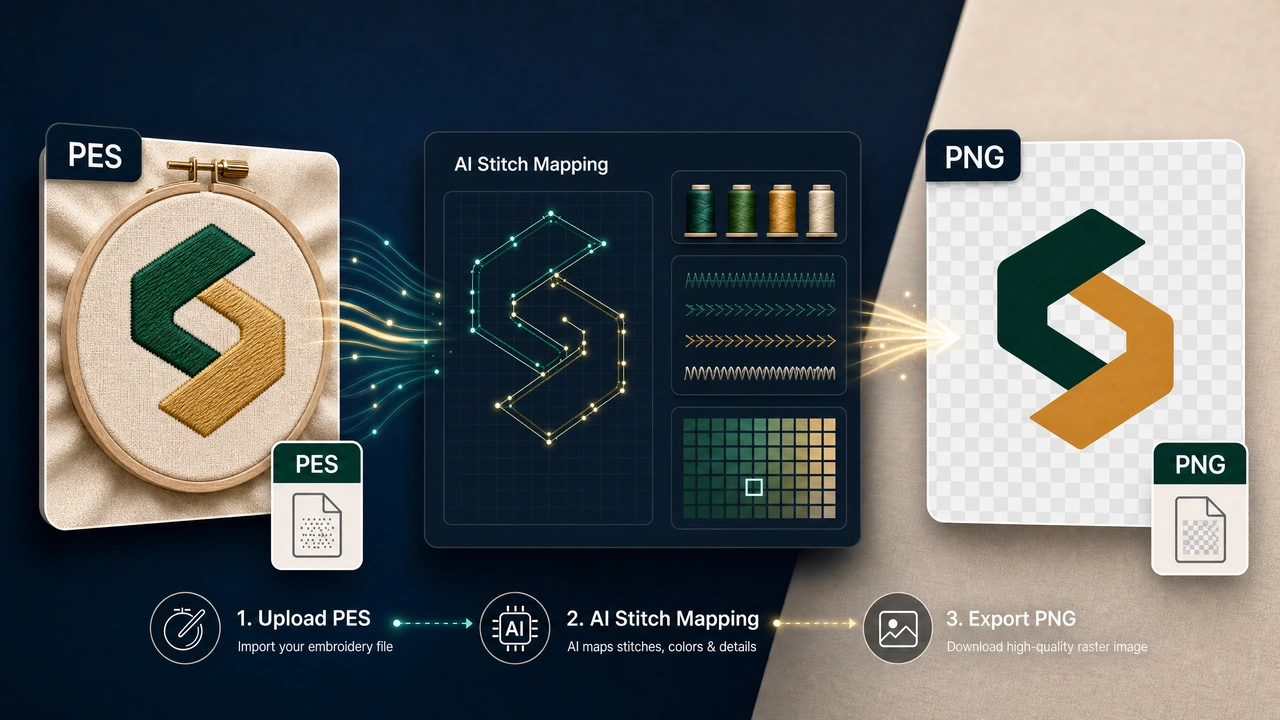
Recommended workflow
Start from a supported stitch or design file such as PES, DST, JEF, VP3, or EXP. The source file quality determines how accurate the preview will be.
StitchPilot.ai generates a visual representation of the stitch structure. The preview shows color zones, approximate scale, and design layout.
Check the rendered preview for obvious errors, unexpected color zones, or scale issues. A preview is useful for communication but not a substitute for a test stitch.
Export the preview as PNG, JPG, or SVG and send it to clients, store it with the order, or use it as a product listing image. Keep the original embroidery file for future use.
About PES
PES is widely used in Brother-oriented embroidery workflows. It stores stitch data, color information, and design metadata in a format that Brother machines and compatible software can read.
Quality & privacy
Embroidery involves physical variables that software cannot fully predict. StitchPilot.ai assists with AI-driven conversion and preview generation — the final stitched result also depends on fabric, stabilizer, needle, thread, hoop size, and machine settings.
PES to PNG — common questions
This page helps users understand the PES to PNG workflow in StitchPilot.ai and choose the right next step — whether generating a preview image, inspecting a Brother file, or routing to production.
Yes. AI conversion, preview export, and file viewing are workflow aids. Review scale, fabric, thread assumptions, density, and machine constraints before production. A preview does not replace a physical test stitch.
No. A preview is useful for communication and quality checks, but a physical test stitch is still recommended for important production runs.
Choose the format requested by your machine, software, vendor, or production partner. When in doubt, keep the original artwork and ask the recipient which format they require.
Contact support@stitchpilot.ai with the route, file type, browser, and a short description of the issue so the support team can investigate.
Ready to continue?
Upload your PES embroidery file, render a stitch preview image, and export a PNG ready for client review or product listings.
Start PES to PNG →