Workflow guide · Image to embroidery file

How to Convert an Image to an Embroidery File

Converting an image to an embroidery file is called digitizing — translating pixel data into stitch paths a machine can execute. StitchPilot.ai uses AI to assist this process, analyzing your image and recommending stitch settings. This guide explains each step from image prep to final export.

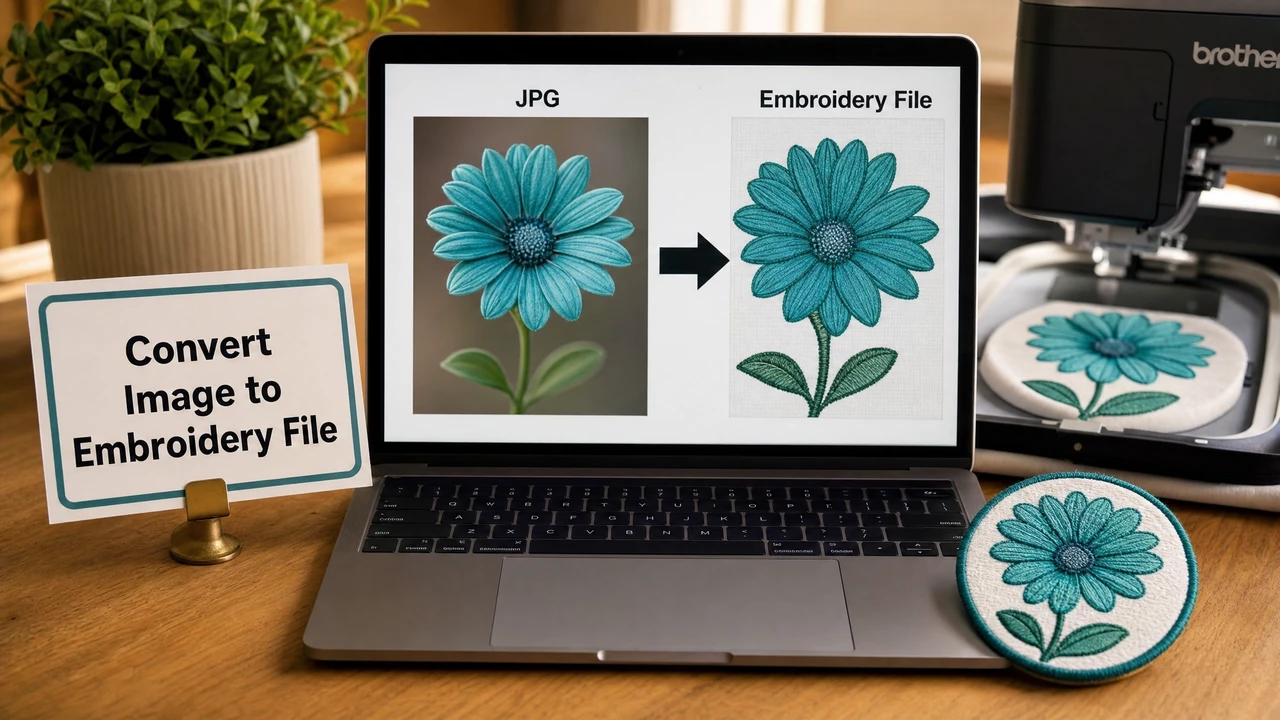
Image to embroidery file conversion workflow in StitchPilot.ai
Image to embroidery file conversion workflow in StitchPilot.ai.

Image to embroidery — step by step

01

Prepare your source image

Start with the best available version of your artwork. SVG vector files and high-resolution PNG with solid color fills produce the most predictable stitch output. Avoid low-resolution screenshots, heavily compressed JPGs, or photorealistic images with complex gradients.

02

Upload and review AI analysis

Upload your image to StitchPilot.ai. The AI identifies color regions, fill boundaries, and design structure, then recommends stitch density, size, and color count. Review the recommendations and adjust settings to match your intended design intent.

03

Preview the stitch result

Before downloading, review the stitch preview. Verify fill coverage across all color regions, check that color boundaries align with the original image, and confirm the design fits your hoop size. Look for collapsed thin lines or incomplete fill areas.

04

Export in your format

Select the embroidery format required by your machine: PES for Brother, JEF for Janome, VP3 for Husqvarna Viking or Pfaff, DST for commercial shops. Download the file and run a test stitch on scrap fabric before committing to production material.

Best source images

What converts well

Embroidery reproduces solid fills, clear outlines, and defined color regions reliably. The following image characteristics typically produce the cleanest stitch output and require the least post-export adjustment.

  • SVG vector artwork with flat fills
  • PNG or JPG with high contrast and solid colors
  • Logos, icons, and flat-design illustrations
  • Limited color palette — 8 colors or fewer is ideal
  • Clean edges between design elements

Format selection

Which format to export

The right export format depends entirely on your machine or production partner. Using the native format for your machine ensures the best compatibility and the most complete color sequence data.

  • PES — Brother, Babylock machines
  • JEF — Janome, Elna machines
  • VP3 — Husqvarna Viking, Pfaff machines
  • DST — commercial shops, Tajima systems
  • EXP — Bernina, Melco machines

Image to embroidery — common questions

What image types can be converted to embroidery files?

StitchPilot.ai accepts PNG, JPG, SVG, and WebP image formats. SVG and PNG with solid color regions typically produce the cleanest embroidery output. Photorealistic JPGs with complex gradients are harder to digitize accurately.

What does digitizing mean?

Digitizing is the process of converting image artwork into stitch data that an embroidery machine can execute. It involves identifying fill regions, determining stitch direction and density, and encoding movement commands for the machine needle.

Which embroidery file format should I export?

Choose the format required by your machine: PES for Brother, JEF for Janome, VP3 for Husqvarna Viking or Pfaff, DST for commercial shops. If you are sending to a commercial embroidery service, DST is almost always accepted.

How long does AI digitizing take?

StitchPilot.ai processes most images in under a minute. Processing time varies based on image complexity and current server load. You can review and adjust the stitch preview before downloading.

Will the embroidery look exactly like my image?

Embroidery reproduces shapes and solid color regions well but cannot replicate photographic gradients or fine texture. Clean, high-contrast artwork with limited colors will be most faithfully represented. Always review the stitch preview and run a test stitch before production.
Ready to convert?

Convert your image to an embroidery file

Upload PNG, JPG, SVG, or WebP artwork. Review the AI-assisted stitch preview and export to PES, DST, JEF, VP3, or any other supported format.

Start converting →