Machine guide · PES format

Brother Embroidery Machine Guide

Brother embroidery machines use PES as their primary format. This guide covers PES version compatibility, hoop size planning, USB transfer tips, and workflow advice for getting the best results from Brother PE, SE, NV, Dreamweaver, and Luminaire series machines.

Brother embroidery machine PES format workflow in StitchPilot.ai
Brother machine workflow and PES format guide in StitchPilot.ai.

Working with Brother machines

01

Confirm your model and PES version

Different Brother models support different PES versions (v1 through v6+). Older PE and SE series machines may require PES v1 or v2. Check your machine manual or the Brother support site for your specific model's requirements.

02

Convert artwork to PES

Use StitchPilot.ai to convert PNG, JPG, SVG, WebP, or logo artwork into PES format with AI-assisted digitizing. Review the stitch preview to check fill coverage, color sequence, and overall layout before downloading.

03

Transfer via USB or media card

Copy the PES file to a FAT32-formatted USB drive or memory card. Brother machines read from USB drives inserted directly into the machine. Avoid special characters in filenames and keep filenames short.

04

Preview and test stitch

Load the design on your machine, use the preview display to check scale and color sequence, then run a test stitch on scrap fabric. Adjust thread tension and stabilizer as needed before final production.
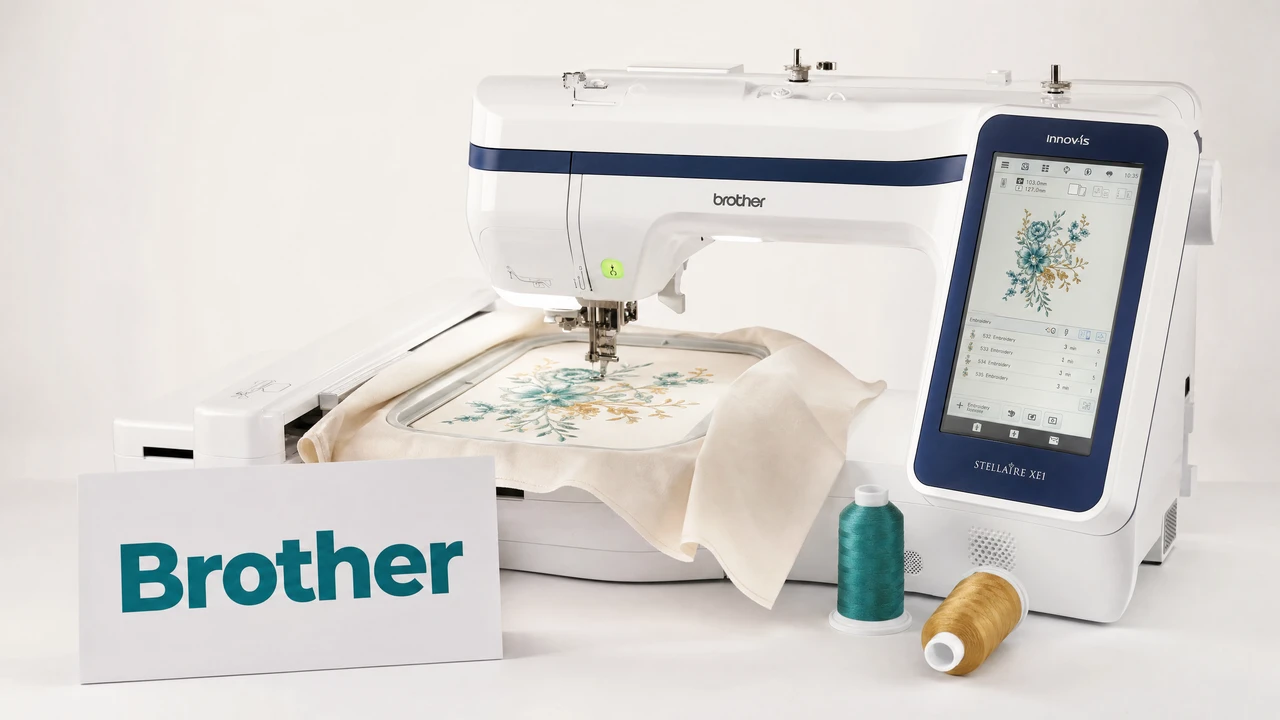
Brother machine series

PE, SE, NV, and Luminaire

Brother's embroidery lineup ranges from entry-level PE and SE models to advanced NV, NS, and Luminaire units. PES version support and maximum hoop size vary significantly by model. The higher-end models also support additional formats and offer larger embroidery areas.

  • PE/SE series: entry-level, PES v1–v4 typical
  • NV/NS series: mid to advanced, wider PES version support
  • Luminaire: high-end, supports newer PES versions and larger hoops
  • Check your manual for exact version and hoop specs

File transfer tips

Reliable USB workflow

For consistent file transfer, use a FAT32-formatted USB drive with a capacity of 4 GB or less. Some Brother machines have difficulty reading drives larger than 4 GB or formatted as exFAT. Keep the USB root directory clean and avoid deep folder nesting.

  • Use FAT32 formatting — exFAT may not be recognized
  • Keep USB capacity at 4 GB or less for widest compatibility
  • Place files in the root directory or one level deep
  • Avoid special characters, spaces, and long filenames

Brother machines — common questions

What file format does Brother embroidery machines use?

Brother embroidery machines primarily use PES format. Different models support different PES versions (v1 through v6+). Check your machine manual to confirm which version is required.

How do I transfer embroidery files to a Brother machine?

Copy the PES file to a FAT32-formatted USB drive and insert it into the USB port on your Brother machine. Navigate to the embroidery menu and select the file from the USB drive.

Why does my Brother machine show an error when loading a PES file?

Common causes include a PES version mismatch, a stitch count that exceeds the machine's limit, special characters in the filename, or a USB drive formatted as exFAT rather than FAT32.

Can I use DST files on a Brother machine?

Some Brother machines include DST support, but PES is the native format. Converting to PES before transfer ensures the best compatibility with Brother machines.

What is the maximum hoop size for Brother embroidery machines?

Maximum hoop size varies by model. Entry-level PE/SE series typically support up to 4×4 or 5×7 inches. Higher-end NV and Luminaire models can handle larger hoops, up to 14×14 inches on some units. Check your machine manual.

Ready to get started?

Convert artwork for your Brother machine

Upload PNG, JPG, SVG, or WebP artwork and export a PES file compatible with your Brother embroidery machine.

Start converting →