Artwork guide · Logo digitizing prep

How to Prepare a Logo for Embroidery

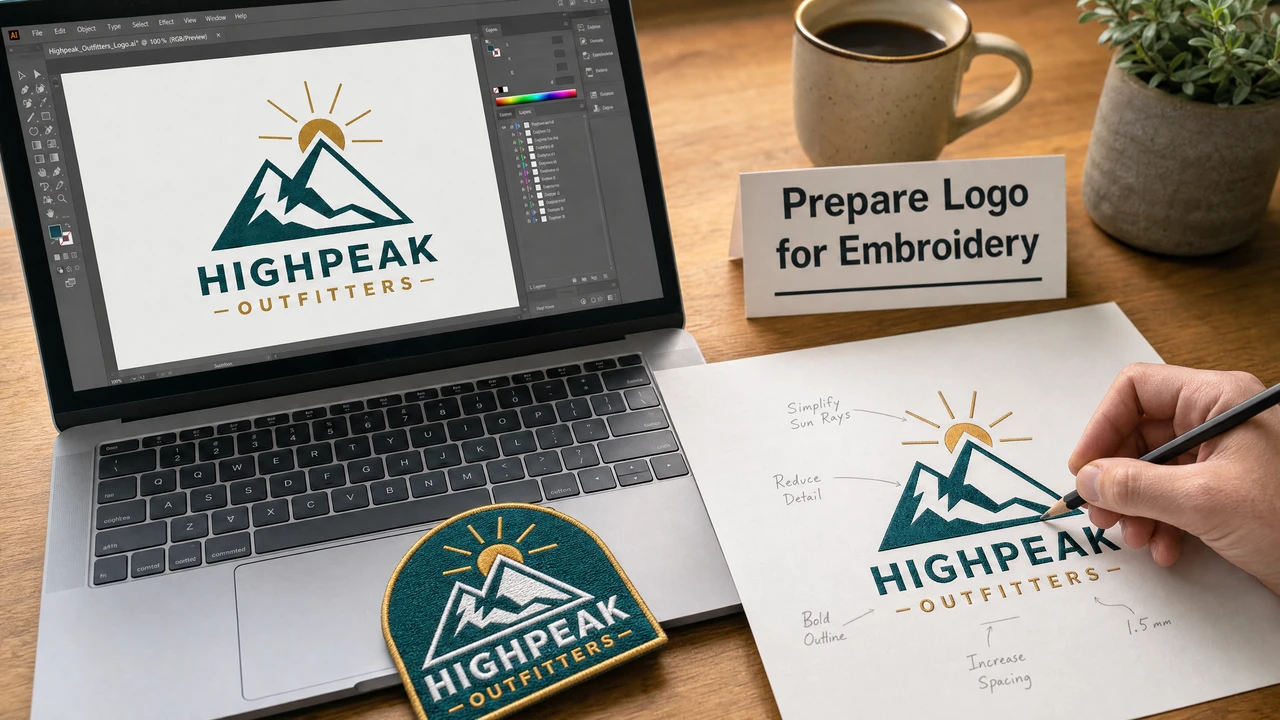
Embroidery has different constraints than print or screen. Thin lines, gradients, and fine detail that work in a logo for print may not translate cleanly to stitches. This guide explains how to prepare a logo to maximize the quality of the embroidery output before digitizing.

Logo preparation for embroidery digitizing artwork guide in StitchPilot.ai
Logo preparation for embroidery digitizing in StitchPilot.ai.

Logo prep steps

01

Simplify shapes and colors

Embroidery works best with clean, separated shape regions and a limited color palette. If your logo has many gradients, photorealistic elements, or very fine details, consider creating a simplified version specifically for embroidery before uploading.

02

Set the target size before uploading

Stitch quality is affected by the output size of the design. A logo that works at 10cm wide may lose important details at 3cm. Decide the intended hoop size and design dimensions before starting the digitizing workflow.

03

Upload and review AI recommendations

Upload your logo file to StitchPilot.ai. The AI analyzes color regions and shape boundaries, then recommends stitch settings. Review the recommendations against your intended design intent and adjust if needed.

04

Verify the preview before export

Check the stitch preview carefully before downloading. Look for thin lines that collapse into single stitch paths, fill areas that look incomplete, and color boundaries that don't match the original logo. Run a test stitch to verify the physical result.
Common logo issues

What to watch for

Logos often have fine details, very thin strokes, or gradients designed for print at large sizes. These elements may not reproduce well in embroidery, especially at small hoop sizes. Addressing known issues before digitizing saves revision time later.

  • Thin strokes under 1.5mm typically collapse in stitch form
  • Gradients should be replaced with flat color fills
  • Very small text (under 4–5mm cap height) is often unreadable
  • High detail areas may need simplification for small designs

File format for upload

SVG or PNG for best results

For logo artwork, SVG (vector) provides the cleanest source for digitizing because it scales without quality loss. PNG or JPG at high resolution (300 DPI or larger) is also acceptable. Avoid low-resolution screenshots or heavily compressed JPGs as source files.

  • SVG vector files scale cleanly at any size
  • PNG at 300 DPI or above provides good raster detail
  • Avoid low-resolution JPG or compressed screenshots
  • Keep the original source file for future revisions

Logo prep — common questions

Does my logo need to be a specific file type?

SVG is ideal for logos because it is vector-based and scales without quality loss. PNG at high resolution (300 DPI or larger) also works well. Avoid low-resolution screenshots or compressed JPG files.

How many colors should an embroidery logo have?

Embroidery works best with a limited color palette — typically 6 colors or fewer for a clean result. Each color change adds a thread trim and potential complexity. Simplify your palette if the original logo has many closely related colors.

Can embroidery reproduce fine details in a logo?

Embroidery has a minimum stitch size of roughly 1.5mm for lines and 4–5mm cap height for text. Details smaller than these thresholds are typically not reproducible cleanly. Simplify or remove very fine elements before digitizing.

What size should the embroidery design be?

Common logo sizes for embroidery are 70–100mm wide for chest placement and 90–120mm for jacket backs. Confirm the intended size with your production contact before digitizing, as stitch density settings depend on the output size.

Do I need to digitize my logo separately for different sizes?

Yes. A design digitized for 100mm may not reproduce well at 40mm. If you need the same logo at significantly different sizes, consider creating separate digitized versions optimized for each size range.

Ready to get started?

Convert your logo to an embroidery file

Upload your logo as SVG or PNG, review the AI-assisted stitch preview, and export a machine-ready embroidery file.

Start logo to embroidery →